


Easy Itch.io Push (Auto Build & Deploy)
Automation plugin for one-click packaging and upload to itch.io.
Overview
Easy Itch Push is an automation tool for Unreal Engine that lets you package and upload your project to itch.io in a single click. The plugin uses the official Butler CLI to provide fast and reliable file delivery.
Setup Guide
Step 0: Prerequisites
Easy Itch Push requires the Butler utility from itch.io. The plugin supports several discovery methods:
- Automatic detection: Checks if Butler is installed via the official itch.io desktop app.
- System PATH: Searches for the Butler executable in your system
PATH. - Local install: Installs Butler locally via the plugin settings (see Butler Configuration below).
Step 1: Plugin Installation
- Copy the plugin folder into your project’s
Pluginsdirectory (create it if it does not exist), or into the engine’s globalPluginsfolder. - Open Unreal Editor and enable the plugin under
Edit → Plugins. - After restart, a Push to itch.io button will appear on the main toolbar.
Step 2: Butler Configuration
Navigate to Project Settings → Plugins → Easy Itch Push. In the Butler section you can manage the CLI state:
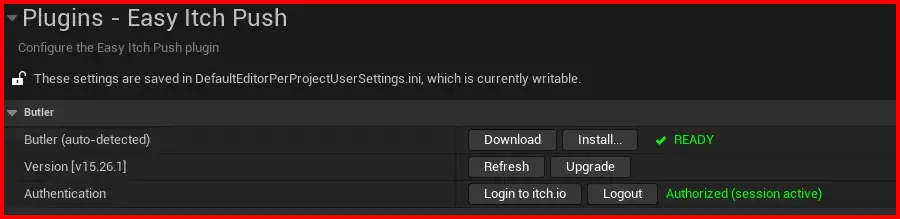
Butler configuration options inside Easy Itch Push settings.
- Status: Shows whether Butler is installed and ready.
- Download: Opens the official Butler download page in your browser (from there you can download the latest builds for Windows, macOS, and Linux from
https://itchio.itch.io/butler). - Install…: Installs Butler from a
.ziparchive into the project folder atSaved/EasyItchPush/bin. - Refresh: Refreshes version info and authorization status.
- Upgrade: Updates Butler to the latest version directly from the editor.
Use Login to itch.io to open the OAuth flow in your browser. After confirming access the plugin will automatically fetch your username. The Logout button allows you to sign out or switch accounts at any time.
Step 3: Account & Project Configuration
Still in Project Settings → Plugins → Easy Itch Push, configure the itch.io section:
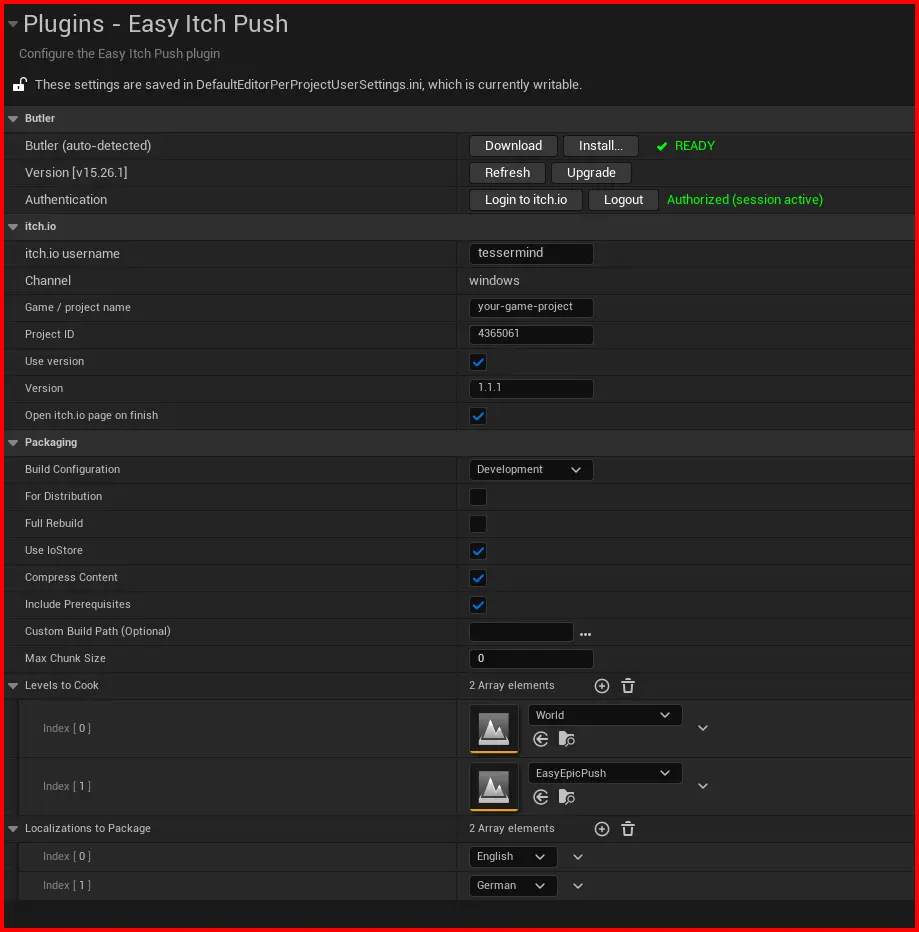
Easy Itch Push configuration panel inside Project Settings.
- itch.io username: Your profile name from the URL.
For
https://tessermind.itch.io/usetessermind. - Game / project name: The project slug from the URL.
For
https://user.itch.io/my-gameusemy-game. - Channel: Upload channel, e.g.
windows-x64,linux-universal,mac-os. Default iswindows. - Project ID: Numeric game ID from the edit URL,
e.g.
https://itch.io/game/edit/999999→999999. Used to open the game’s edit page after upload. - Use version / Version: Enables passing
--userversionto Butler. The value (e.g.v1.0.4,alpha-2) appears in the build list on itch.io. - Open itch.io page on finish: Automatically opens the game’s edit page in your browser after a successful upload.
The itch.io project must already exist. You can find the slug and URL in the game’s Edit Game → Project URL section.
Step 4: Packaging Settings
In the Packaging section configure how the build is created before upload:
- Build Configuration:
Shipping,DevelopmentorDebug. - For Distribution: Recommended for release builds; disables debugging features.
- Full Rebuild: Forces a full rebuild of the project before every upload.
- Use IoStore: Enables Zen Loader (recommended for UE5) for faster streaming.
- Compress Content: Compresses
.pakfiles to reduce final archive size. - Include Prerequisites: Includes installers for dependencies (DirectX, VC++, etc.).
- Custom Build Path: Custom output folder. Default is
Saved/EasyItchPush/Build. - Levels to Cook: Explicit list of maps to include. If empty, all maps are cooked.
- Localizations to Package: Select which cultures to include in the build.
Usage
One-click Upload
To publish a new build, simply click the Push to itch.io button on the main toolbar. The plugin will:
- Validate: Check plugin settings and Butler readiness.
- Package: Run the standard Unreal Engine packaging process.
- Push: Upload the resulting files to itch.io using Butler.
Progress & Notifications
- Progress and status are shown in a notification in the bottom-right corner of the editor.
- Audible cues indicate start, success and failure of the process.
- A Cancel button in the notification allows aborting the operation at any time.
- Detailed logs are available in Output Log under categories:
LogEasyItchPush,LogEasyItchPushBuild,LogEasyItchPushUpload.
Tips & Plugin Behavior
Slug Normalization
The plugin automatically normalizes your username and game slug to match itch.io standards:
- Converts to lowercase.
- Replaces spaces with dashes.
- Removes unsupported characters where possible.
Security & Auth
Easy Itch Push never stores your password. Authentication uses the official itch.io OAuth flow.
Troubleshooting & FAQ
Inspect the Output Log. In most cases the failure is caused by C++ compilation errors or missing assets. If a normal Package Project run fails, Easy Itch Push will also fail.
Make sure you have logged in via Login to itch.io or installed Butler using the Install… button in the plugin settings. Also ensure Butler is available either via local install or in your system PATH.
Verify that the itch.io username and Game / project name fields match the URL of your game exactly. For example, https://user.itch.io/my-game → username user, project my-game.
If a process hangs, use the Cancel / Cancel All button in the notification to stop Butler and the packaging tasks.